AI coding tools hid 15 GB on my Mac. unclog found it
By Nihar Ranjan Das · Wed Oct 28 2026 · 11 min read · 0 views
View as a Web StoryAISoftware#developer tools#claude code#cursor#pnpm#unclog#disk space#cli
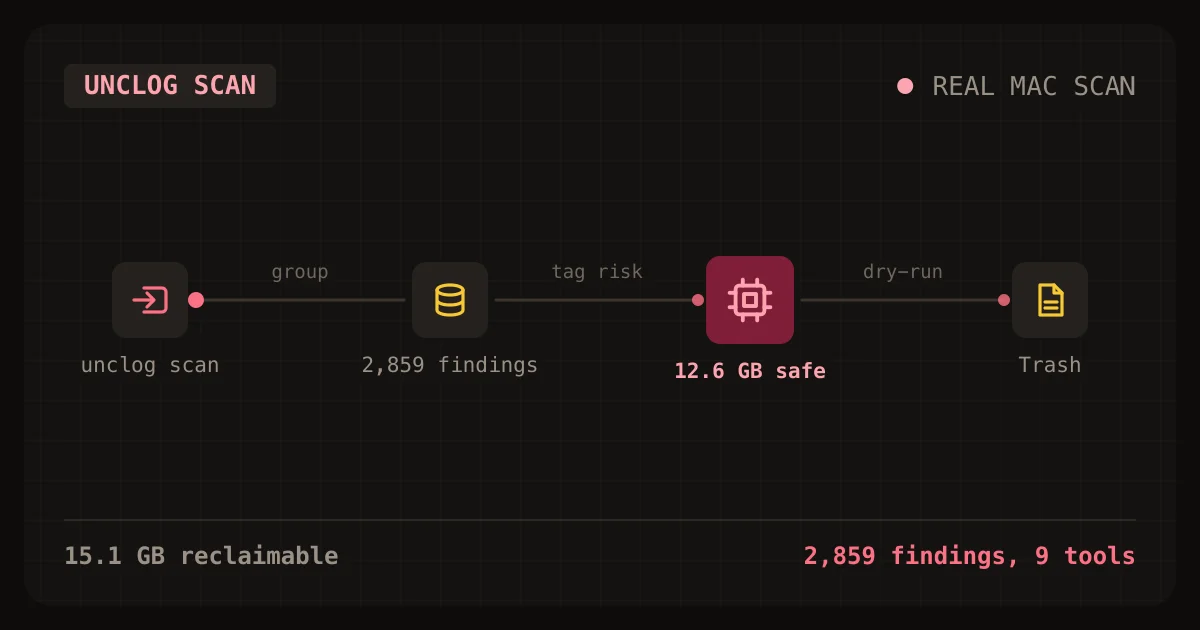
Run unclog scan and it lists the disk space and RAM your AI coding tools are holding, grouped by tool. On my MacBook it found 15.1 GB reclaimable, and 12.6 GB of that was safe to delete without a second look. Then unclog clean --dry-run shows what would move to the Trash before anything moves.
unclog is a free, open-source command-line tool for macOS, Linux and Windows. It reads the folders that Claude Code, Cursor, VS Code, Windsurf, Ollama, LM Studio, Hugging Face, Docker and your package managers write to. Its source and README are on GitHub under the MIT license. It makes no network calls and sends no telemetry.
Why does this matter right now?
AI coding tools write considerably more to disk than traditional editors ever did, because every Claude Code session is saved as a log file, every editor keeps extension downloads and GPU caches, and every package manager keeps a content store that grows over time and is rarely pruned by the people who depend on it.
My Mac showed the result of that habit: the disk was at 97 percent used, with 6.2 GiB free on a 228 GiB volume according to df -h, and there was no single enormous file to blame because the space was spread across 2,859 separate findings.
The same machine had 6.8 GB of its 8.0 GB RAM in use while macOS reported memory pressure as "warning", and one Claude Code process had been running for 2 days and 9 hours after its parent application disappeared, which makes it an orphan that quietly keeps holding memory.
The bottom line: a laptop full of AI tooling leaks storage gradually, and no built-in operating system utility shows every contributor together, which is the gap unclog was written to close.
What did unclog find on my machine?
The scan found 15.1 GB reclaimable across 9 tools on one run. That is my own measurement from unclog scan --json, taken on October 28, 2026, on macOS arm64 with the dev build of the tool.
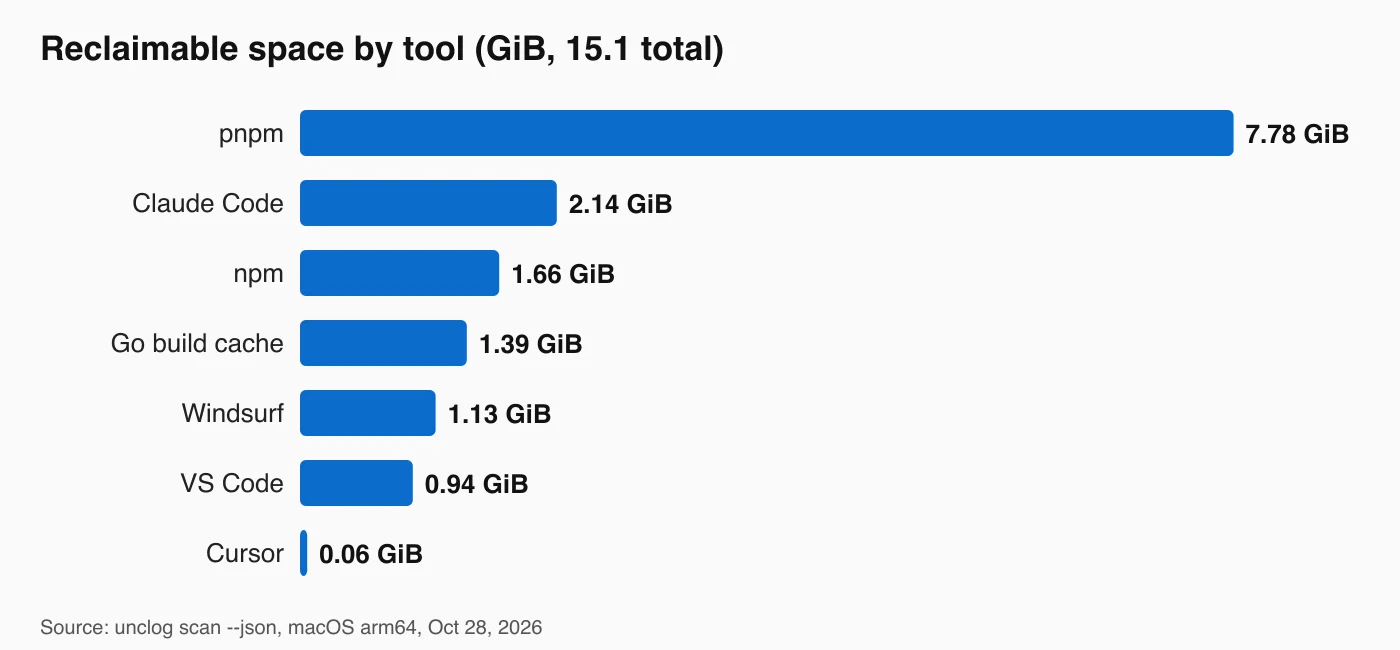
The biggest single item was the pnpm store. It held 7.8 GiB in one folder. Claude Code was second with 2.1 GiB, but spread over 2,791 session files.
| Tool | Reclaimable | Items | Risk |
|---|---|---|---|
| pnpm | 7.78 GiB | 1 | safe |
| Claude Code | 2.14 GiB | 2,791 | review |
| npm | 1.66 GiB | 2 | safe |
| Go build cache | 1.39 GiB | 1 | safe |
| Windsurf | 1.13 GiB | 8 | safe |
| VS Code | 0.94 GiB | 8 | safe |
| Cursor | 0.06 GiB | 8 | safe |
| pip | 0.04 GiB | 1 | safe |
| Temp files | under 0.01 GiB | 39 | safe |
Sizes are in GiB (1,024 cubed bytes), which is why the scan prints 15.1 GB while the raw total is 16,251,683,613 bytes.
Advertisement
The takeaway is that two tools, pnpm and Claude Code, account for roughly two thirds of the total waste, while the editors that developers usually suspect first are comparatively small contributors.
How do you install unclog?
Install unclog with one command on each platform. Homebrew covers macOS and Linux, and Scoop covers Windows.
On macOS or Linux with Homebrew:
brew install --cask NiharRan/tap/unclogOn Windows with Scoop:
scoop bucket add NiharRan https://github.com/NiharRan/scoop-bucket
scoop install unclog
If you already have Go 1.26 or newer, go install works too:
go install github.com/NiharRan/unclog@latestYou can also download an archive from the releases page and put the binary on your PATH. Check the install with unclog version. It prints the version, commit and platform.
How do you scan for waste?
Run unclog scan with no flags. It prints disk use grouped by tool, then RAM use grouped by tool, then a total.
unclog scanEach finding shows a label, a category, a risk level, a size and a last-used date. The categories are model, cache, tmp and logs. The tail of my output looked like this:
Found 15.1 GB reclaimable.Three flags make the scan more useful:
--only diskor--only ramlimits the report to one resource.--min-size 100MBhides small findings, which cuts my 2,859 items to a short list.--jsonprints machine-readable output with aschema_versionfield, so you can feed it into scripts or a dashboard.
Exit code 2 means nothing was found, which makes unclog scan easy to use in a shell script.
What do the risk levels mean?
unclog tags every finding as safe, review or careful. The tag decides whether the item starts checked in the cleanup list.
| Level | What it covers | Starts checked? |
|---|---|---|
safe |
Caches you can regenerate, such as the pnpm store | Yes |
review |
Session logs, local history, Docker images | No |
careful |
Downloaded models | No |
On my machine, 12.61 GiB was safe and 2.53 GiB was review. No careful items showed up because I have no local models installed.
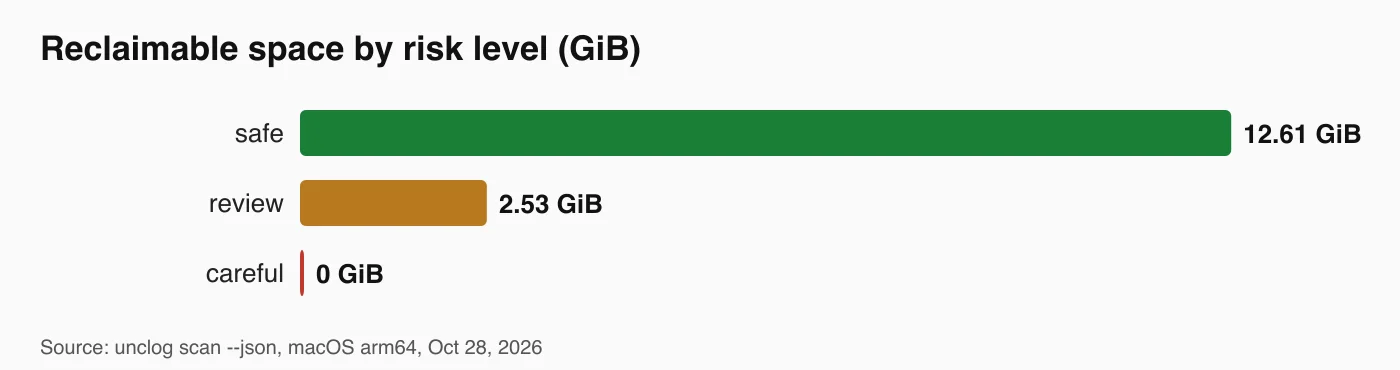
| Risk | Size on my Mac |
|---|---|
| safe | 12.61 GiB |
| review | 2.53 GiB |
| careful | 0 GiB |
Claude Code logs are classified as review rather than safe because session logs record the history of your past work instead of acting as a regenerable cache, so you may genuinely want to search an old conversation, and unclog therefore lists them while leaving the final decision to you.
How do you clean safely?
Start with a dry run. unclog clean --dry-run shows exactly what a real run would do and changes nothing.
unclog clean --dry-run --yesMy dry run listed 62 items totaling 12.6 GB. It ended with "Dry run: 62 items, 12.6 GB. Nothing was changed." The list included the pnpm store at 7.8 GB, the npx cache at 1.5 GB and the Go build cache at 1.4 GB.
Once the proposed list looks reasonable to you, run the interactive version of the command, which presents every finding as a checklist:
unclog cleanOnly safe items start checked, you can tick review items by hand if you decide that old session history is worth discarding, and every selected file goes to the operating system Trash, so a mistaken selection remains recoverable.
Remember that the Trash continues to hold those bytes, so disk space does not actually return to the system until you empty it manually.
These flags narrow the cleanup:
--category cachecleans only caches.--category logscleans only logs.--older-than 30dlists only items last used more than 30 days ago.--yesskips the prompt and cleans thesafedefaults only.--permanentdeletes for good. It asks you to typedeletefirst, unless you add--yes.
For a conservative first pass, try unclog clean --category cache --older-than 7d. For example, the pnpm store on my machine was last used 8 days ago, so it would qualify.
How do you stop orphaned processes?
An orphan is a matched process whose parent chain ends at init or at a dead parent and which has also consumed almost no CPU for 10 minutes, and the unclog ps command lists every AI-related process in a table that includes RAM, CPU, uptime, parent and an orphan flag.
unclog psTOOL PID RAM CPU UPTIME PARENT ORPHAN
Claude Code 84399 165.6 MB 7.6% 2m45s zsh(82992) -
Claude Code 11674 3.8 MB 0.0% 2d9h launchd(1) likely(Source: unclog ps output on my Mac, October 2026)
The second row is the orphan, a Claude Code process whose parent is launchd(1), with 0.0 percent CPU and 2 days 9 hours of uptime, and unclog marks it "likely" because it has not yet observed the process for the full 10 minute window, so you should run unclog ps --watch to confirm the diagnosis before acting on it.
Then stop it:
unclog kill --orphans --dry-run
unclog kill --orphans
The kill command sends SIGTERM first and escalates to SIGKILL after 5 seconds, and it deliberately refuses to touch processes owned by other users, process IDs below 100, or its own parent shell.
My orphan held only 3.8 MB, which shows that individual orphans are small, although MCP servers and language servers abandoned by a crashed editor can accumulate into a meaningful amount of memory over the course of a week, and this workflow is how you would notice them.
What is the fastest way to find the top problems?
Run unclog doctor, which ranks the five most serious problems on your machine and attaches a one-line fix to each, making it the single command worth running first if you only have time for one.
On my machine it printed:
- Only 6.4 GB free on the disk holding my home folder (3 percent). Fix:
unclog clean. - pnpm: 7.8 GB reclaimable in 1 item. Fix:
unclog clean --category cache. - Memory pressure is warning: 6.8 GB of 8.0 GB in use. Fix:
unclog ps. - Claude Code: 2.1 GB reclaimable in 2,791 items. Fix:
unclog clean --category logs. - npm: 1.7 GB reclaimable in 2 items. Fix:
unclog clean --category cache.
Each line points to the exact command that resolves the problem, and adding --json produces output that scripts and dashboards can consume.
What stops unclog from deleting the wrong thing?
unclog enforces its safety rules in code and covers them with tests. The README lists eleven. Four matter most.
- Denylist is a fixed list of paths that are always refused. It includes
/, your home folder, Documents, Desktop, Downloads, any.gitfolder,.envfiles, SSH and GPG keys, and browser profiles. - Detector-only paths means you cannot pass a path on the command line. Only paths that a built-in detector produced can be deleted.
- Symlink resolution means a link that points outside the expected folder is refused.
- Action log is a record of every clean and kill, written to
~/.config/unclog/history.log.
Configuration and authentication files such as ~/.claude.json and stored credentials are never touched, files that a running process has open are skipped, and the caches belonging to a currently running tool are skipped unless you explicitly confirm the removal.
The realistic worst case is that a detector path lists something you wanted to keep, but because files go to the Trash and the default selection holds only regenerable caches, you can restore them without any lasting damage.
How do you tune it for your setup?
Run unclog config init to write a commented file at ~/.config/unclog/config.yaml. On Windows the folder is %APPDATA%\unclog.
exclude: []            # paths or globs that are never listed or removed
custom_paths: []       # extra directories to report (risk: review)
min_size: 0            # hide findings smaller than this, e.g. 100MB
orphan_idle_minutes: 10
quiet: false           # hide the footer
update_check: false    # reserved; unclog makes no network calls
Use exclude for anything you intentionally want to keep, such as a model you downloaded on purpose, use custom_paths to include your own build output folders in the report, and set min_size: 100MB to remove small findings that only add noise to the output.
unclog also follows each tool's own environment overrides. Examples include HF_HOME, OLLAMA_MODELS, XDG_CACHE_HOME, CLAUDE_CONFIG_DIR and GOCACHE. If you moved a cache folder, unclog should find it there.
Should you use unclog, or clean by hand?
Use unclog if you run more than two AI tools or package managers. A manual cleanup means one command per tool, and you must know every path. For example, pnpm has pnpm store prune, npm has npm cache clean, and Go has go clean -cache. The official docs for the pnpm store, the npm cache and the Go build cache cover each.
| Approach | Commands to run | Shows total | Trash by default |
|---|---|---|---|
| By hand | One per tool, 6 or more | No | No |
| unclog | scan then clean |
Yes | Yes |
You can reasonably skip unclog if you only rely on a single tool, because that tool's own prune command is then sufficient for the job.
It helps to know what the tool deliberately does not do: it has no background daemon, no scheduling, no automatic cleanup, no graphical interface and no "RAM booster" that frees the operating system file cache, so it runs only when you run it.
What are the limits of this test?
The test setup was a single scan on a single machine, run on October 28, 2026, with a MacBook that has 228 GiB of storage, 8 GB of RAM and heavy daily use of pnpm and Claude Code, so your own numbers will differ considerably depending on which tools you run. The methodology was unclog scan, unclog scan --json, unclog ps and unclog doctor for measurement, plus unclog clean --dry-run --yes for the safe total, and I did not perform a real clean, which means the 12.6 GB figure is a projection and the actual space recovered after emptying the Trash was not measured.
Tools also move their folders between versions. If a path is wrong on your machine, open an issue on the issue tracker.
Advertisement
FAQ
Is unclog safe to run on my Mac?
Yes, if you start with `unclog scan` and `unclog clean --dry-run`. Both change nothing. A real clean moves files to the Trash, only pre-selects regenerable caches, and refuses a fixed list of protected paths.
How do I free disk space used by Claude Code?
Run `unclog clean --category logs --older-than 30d`. Claude Code session logs are marked `review`, so you tick them by hand. They move to the Trash, and you empty it to get the space back.
Does unclog send data anywhere?
No. unclog makes no network calls and sends no telemetry. The `update_check` setting is reserved and defaults to false. Every clean and kill action is logged locally to `~/.config/unclog/history.log`.
Can unclog delete my downloaded Ollama or Hugging Face models?
Only if you select them. Models are tagged `careful`, listed unchecked, and skipped by `--yes`. Add paths to the `exclude` setting to hide them from the list entirely.
What is an orphaned process?
An orphaned process is a program whose parent has exited and that has used almost no CPU for 10 minutes. Examples are MCP servers and language servers left behind by a closed editor. Use `unclog ps` to see them and `unclog kill --orphans` to stop them.
Comments
Loading…
Sign in to join the conversation.
Related posts
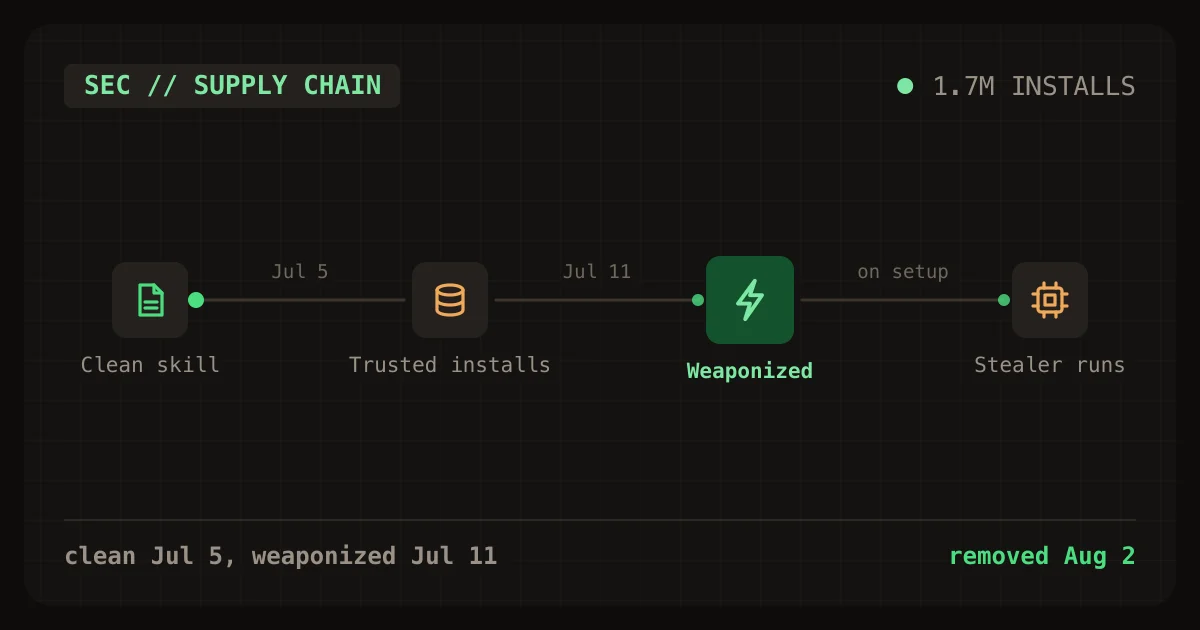
Are agent skills safe to install? A 1.7M-install trojan
Trojanized skills hit 1.7M displayed installs before takedown. See how the attack worked, a 6-check audit script, and what it found on a real dev machine.
Wed Oct 28 2026 · 9 min read · 0 views
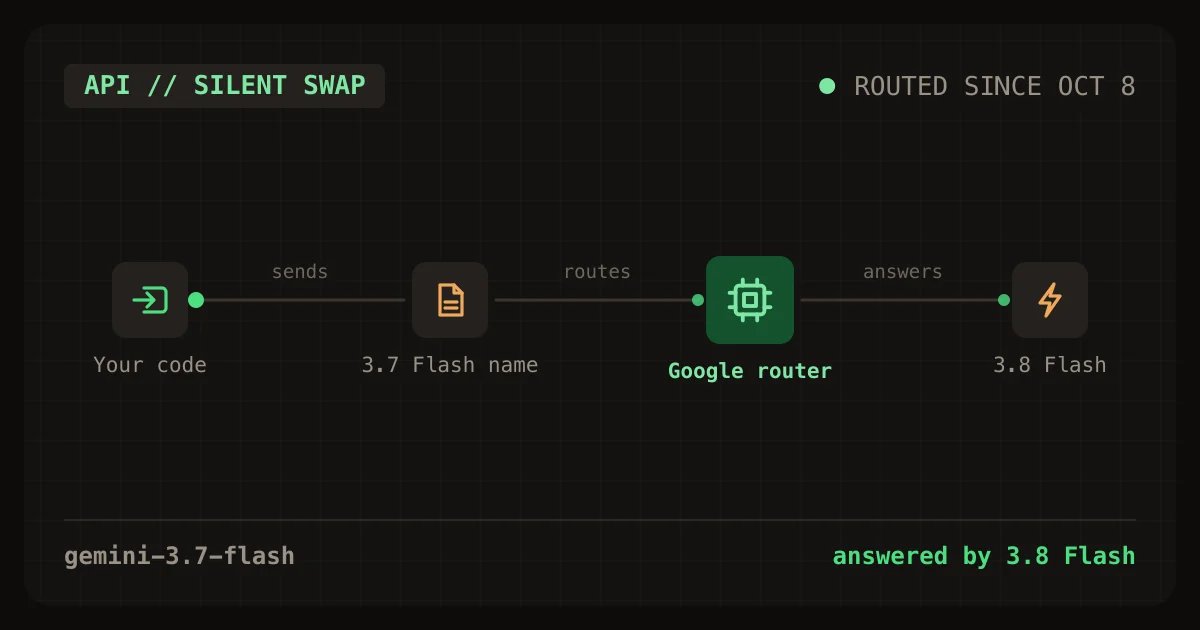
Gemini 3.7 Flash now runs as 3.8 Flash: what to check
Google quietly routes gemini-3.7-flash calls to 3.8 Flash. Check your logs, the minimal thinking error, and the Jan 1, 2027 price doubling. Scanner and test included.
Wed Oct 28 2026 · 9 min read · 0 views
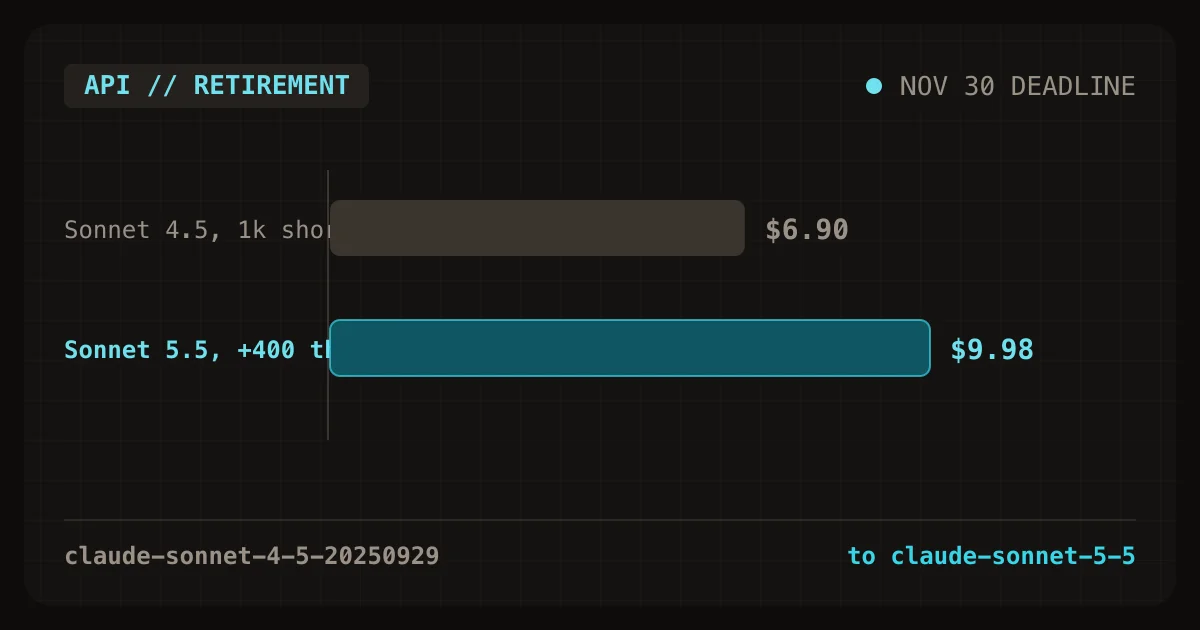
Claude Sonnet 4.5 retires Nov 30: what breaks on 5.5
Sonnet 4.5 retires Nov 30, 2026. Five settings now return 400 errors on Sonnet 5.5, and thinking costs can erase the price cut. Scanner and cost table inside.
Wed Oct 28 2026 · 10 min read · 0 views